
If you have ever had to open 20, 50, or 100 PDFs just to copy a few fields into Excel, you know the pain.
Filechomp.com is built for this kind of issue: drop in your PDFs, describe what you want, and get a clean Excel report back.
What FileChomp does
FileChomp turns messy PDF documents into structured Excel files.
Instead of manually opening each PDF and copying values one by one, you simply tell FileChomp what data you want extracted.
For example:
Extract the invoice number, company name, date, and total amount from each PDF.
FileChomp reads the PDFs and creates an Excel sheet with one row per document.
Step 1: Upload your PDFs
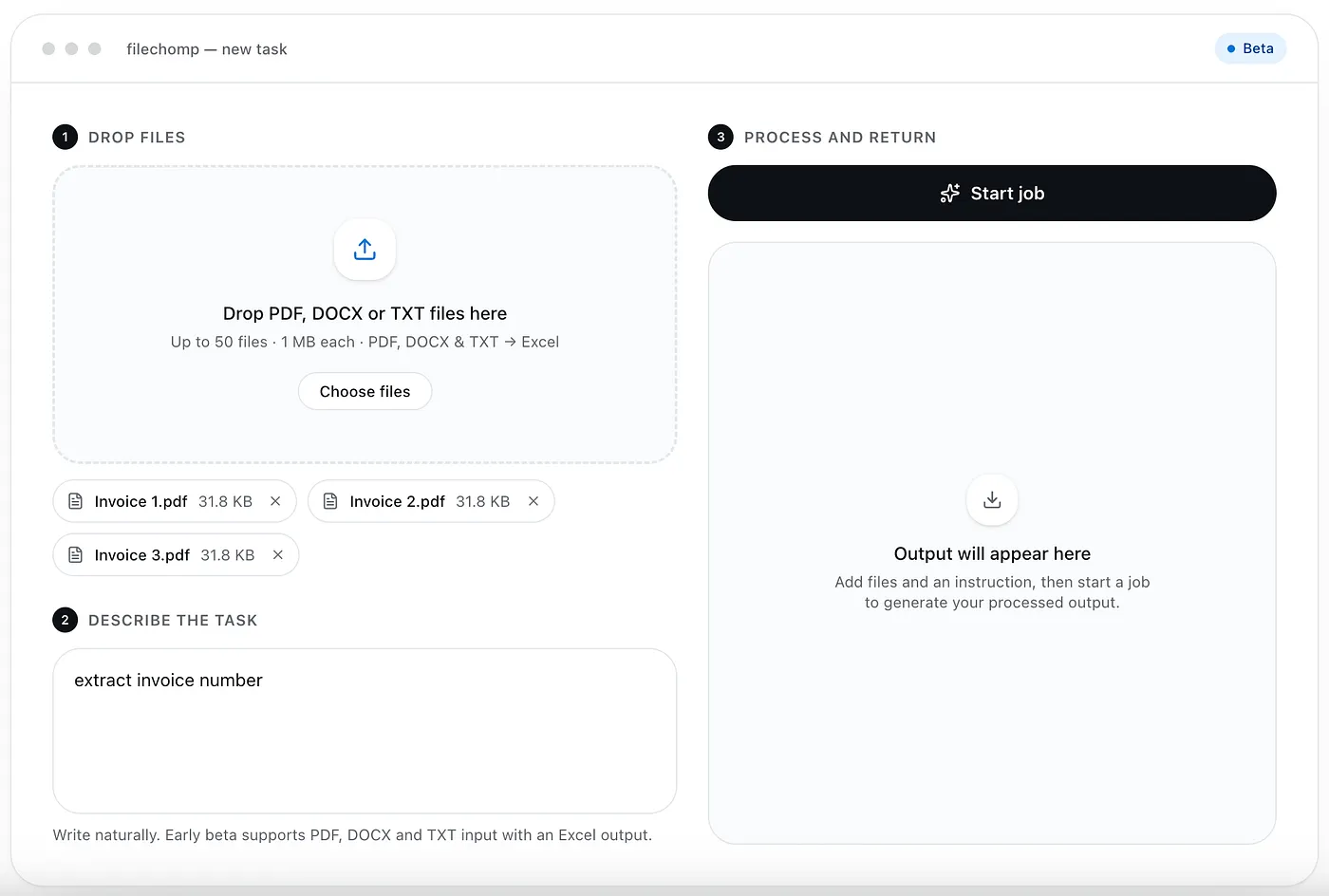
Start by dragging your PDFs into FileChomp.
You can upload many files at once, so you do not need to process them one by one.
This is useful for things like:
- invoices
- receipts
- order confirmations
- contracts
- application forms
- reports
- delivery notes
The goal is simple: take a pile of PDFs and turn it into a spreadsheet.
Step 2: Tell FileChomp what to extract
Next, write a short instruction in plain English.
You do not need a template. You do not need to configure a workflow. Just describe the Excel report you want.
Example prompts:
- Create an Excel report with invoice number, vendor name, invoice date, and total amount.
- Extract customer name, email, phone number, and requested service from each PDF.
- Make a spreadsheet with document title, date, company name, and summary.
The clearer your instruction, the better the result.
Step 3: Let FileChomp process the files
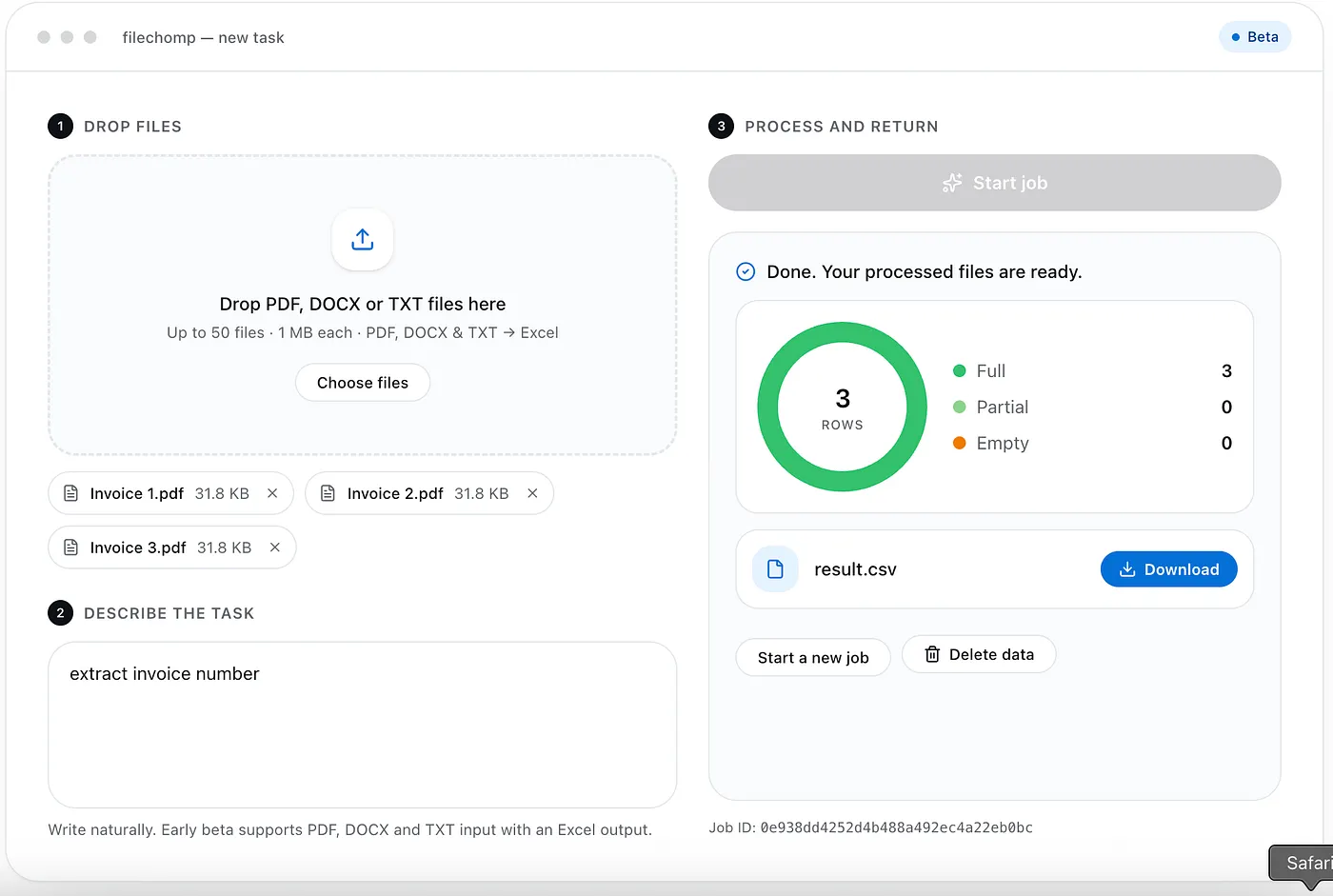
Once you start the job, FileChomp goes through the PDFs and extracts the requested information.
Instead of manually checking every document, you get a structured result that is ready to review.
For most office tasks, this removes the most annoying part: opening files, searching for the right value, copying it, pasting it, and repeating the same thing again and again.
Why this is useful
FileChomp is not meant to be complicated enterprise software.
It is for the moment when you just need the data out.
- No complex setup.
- No manual copy-paste marathon.
- No building workflows before doing the actual work.
Just upload the PDFs, say what you need, and get the Excel report.
Best practices
For better results, keep your request specific.
Instead of writing:
Extract the data.
Write:
Create an Excel report with invoice number, supplier name, invoice date, subtotal, VAT, and total amount.
Also, try to use consistent PDFs when possible. FileChomp can handle variation, but if your files are similar, the output will usually be cleaner.
Final thought
Turning many PDFs into an Excel report should not require hours of repetitive office work.
With FileChomp, the process is simple:
Upload PDFs → describe the report → download Excel.
That is it.